01 · Plan
Choose the complete run before motion starts.
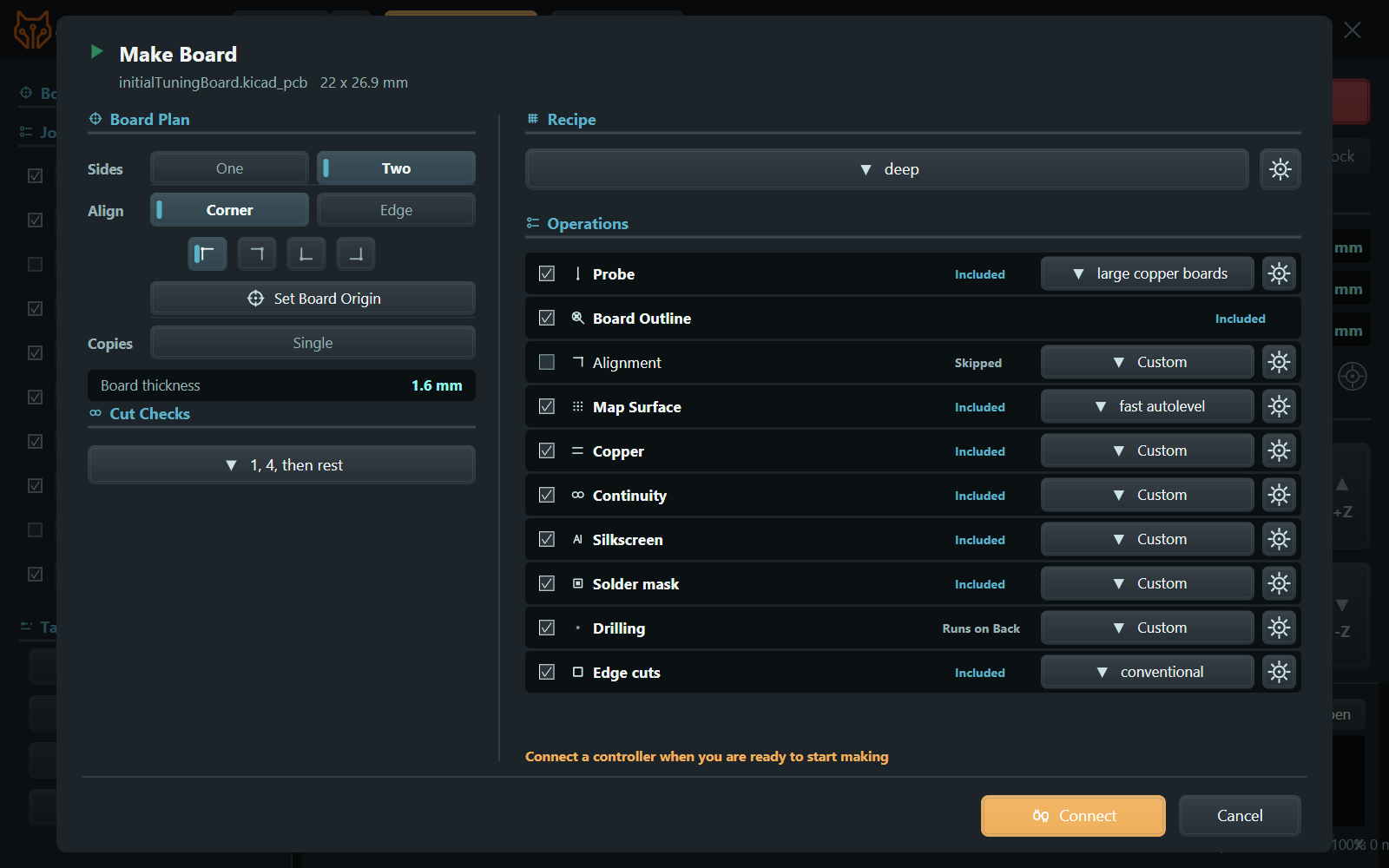
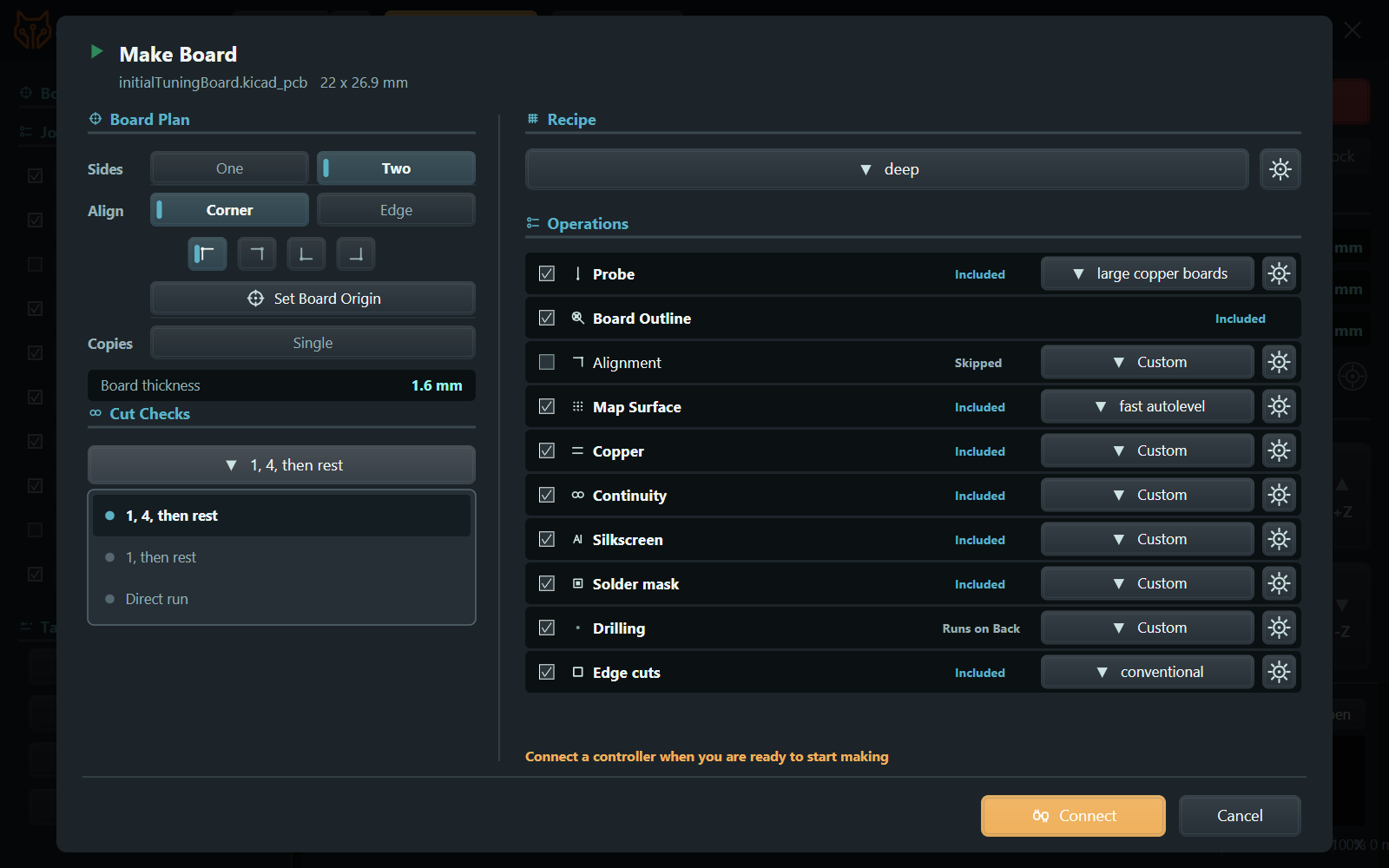
Make Board gathers the recipe, front or back sides, alignment method, origin, copies, verification strategy, and every required operation into one reviewable plan.

Software tour
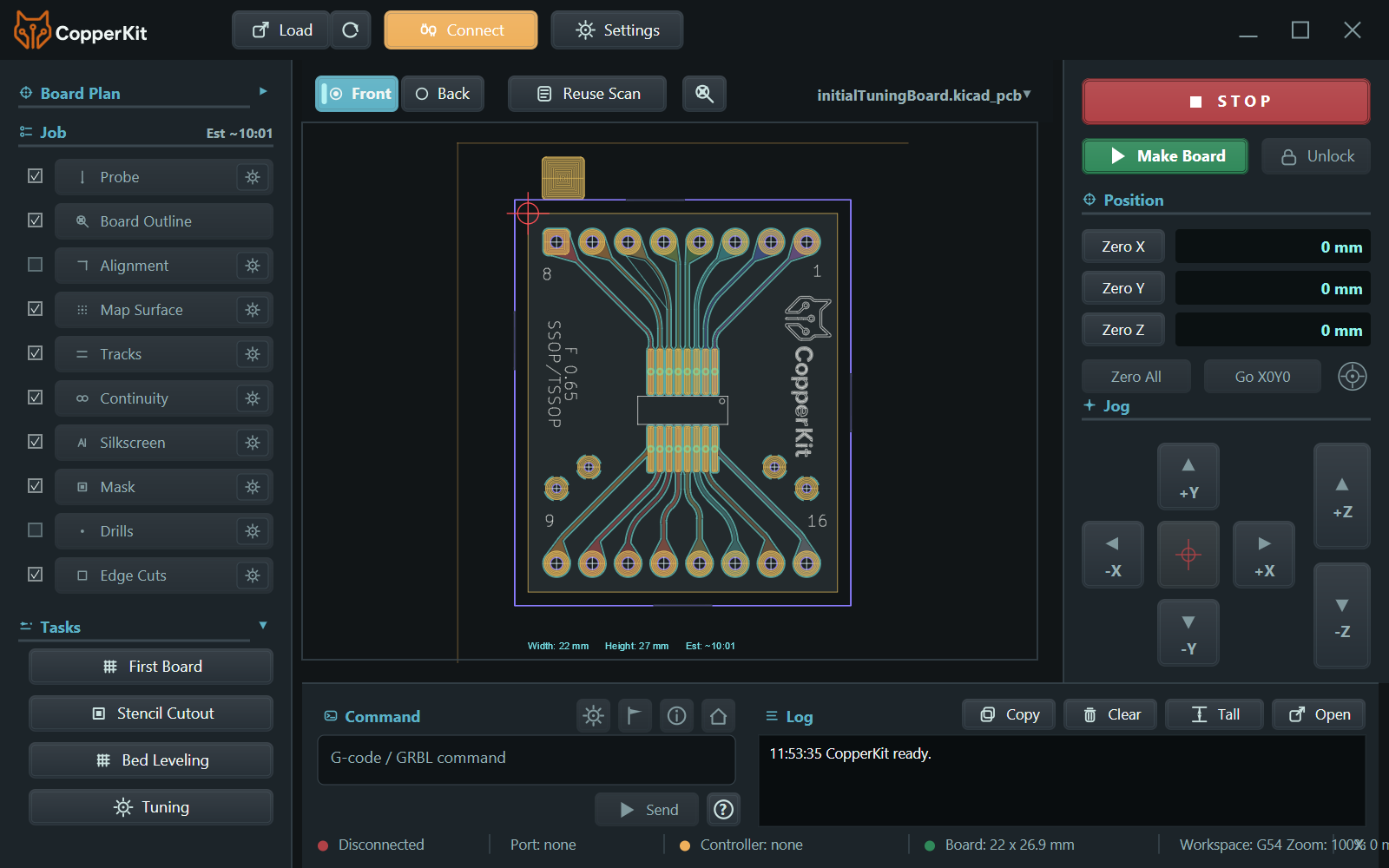
Load the design, choose the copper-removal tool, connect the machine, tune against real material, and carry one guided plan through alignment, machining, inspection, drilling, and finishing.
These screens are from the Windows beta. Numeric values are one machine's working calibration, not general recommendations.
01 · Plan
Make Board gathers the recipe, front or back sides, alignment method, origin, copies, verification strategy, and every required operation into one reviewable plan.
02 · Reuse
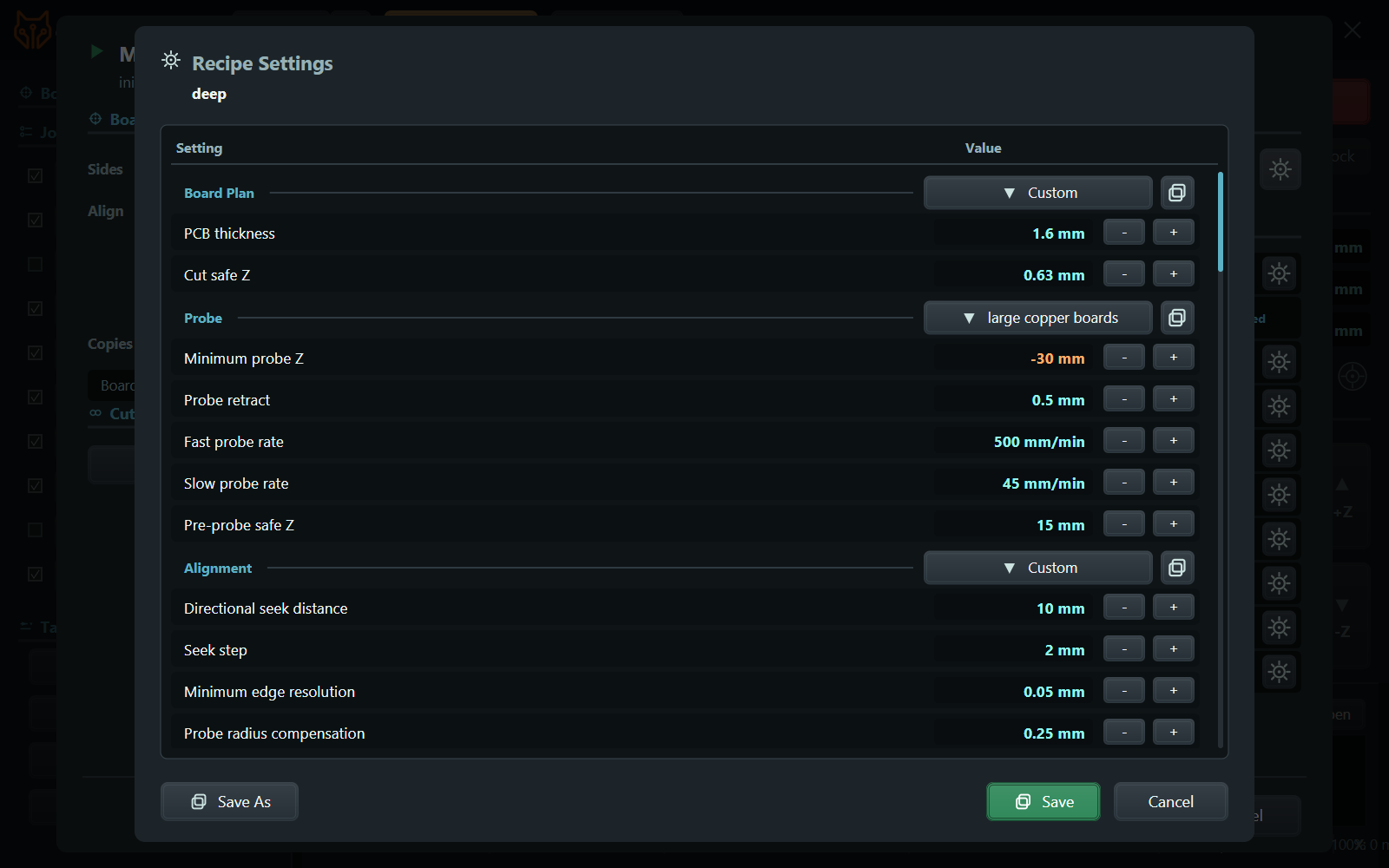
Named settings keep probing, alignment, mapping, tracks, cleanup, silkscreen, mask, drilling, and board-edge operations consistent across projects.
03 · Tune
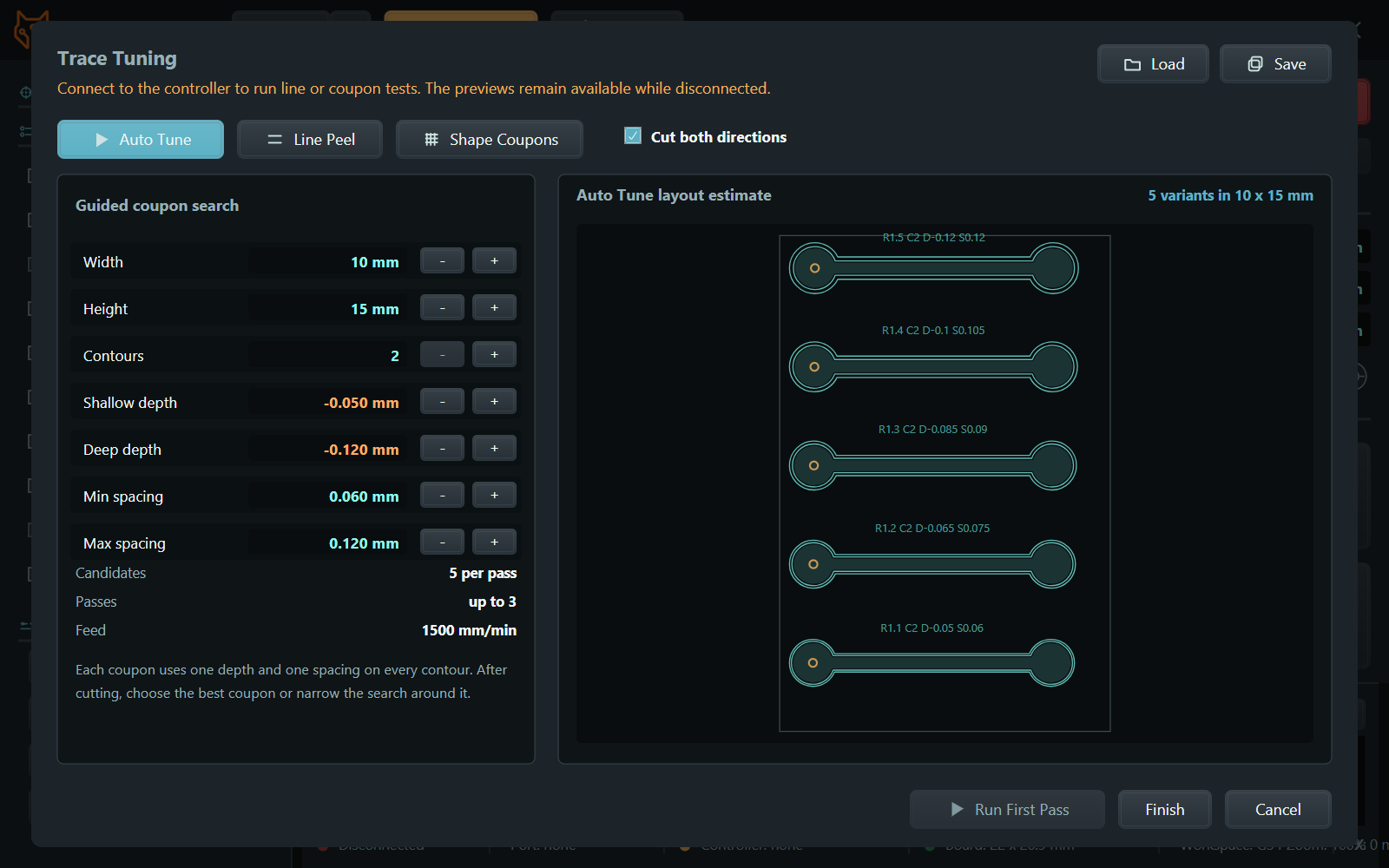
Trace Auto Tune lays out compact coupons across depth and contour spacing. After each pass, the best result narrows the next search until the cut is clean and reliable.
04 · Verify
Cut checks can pause after the first operation, sample again later, or run directly once the board and machine are understood. Early beta work can stay cautious without making every future board equally slow.
05 · Flip
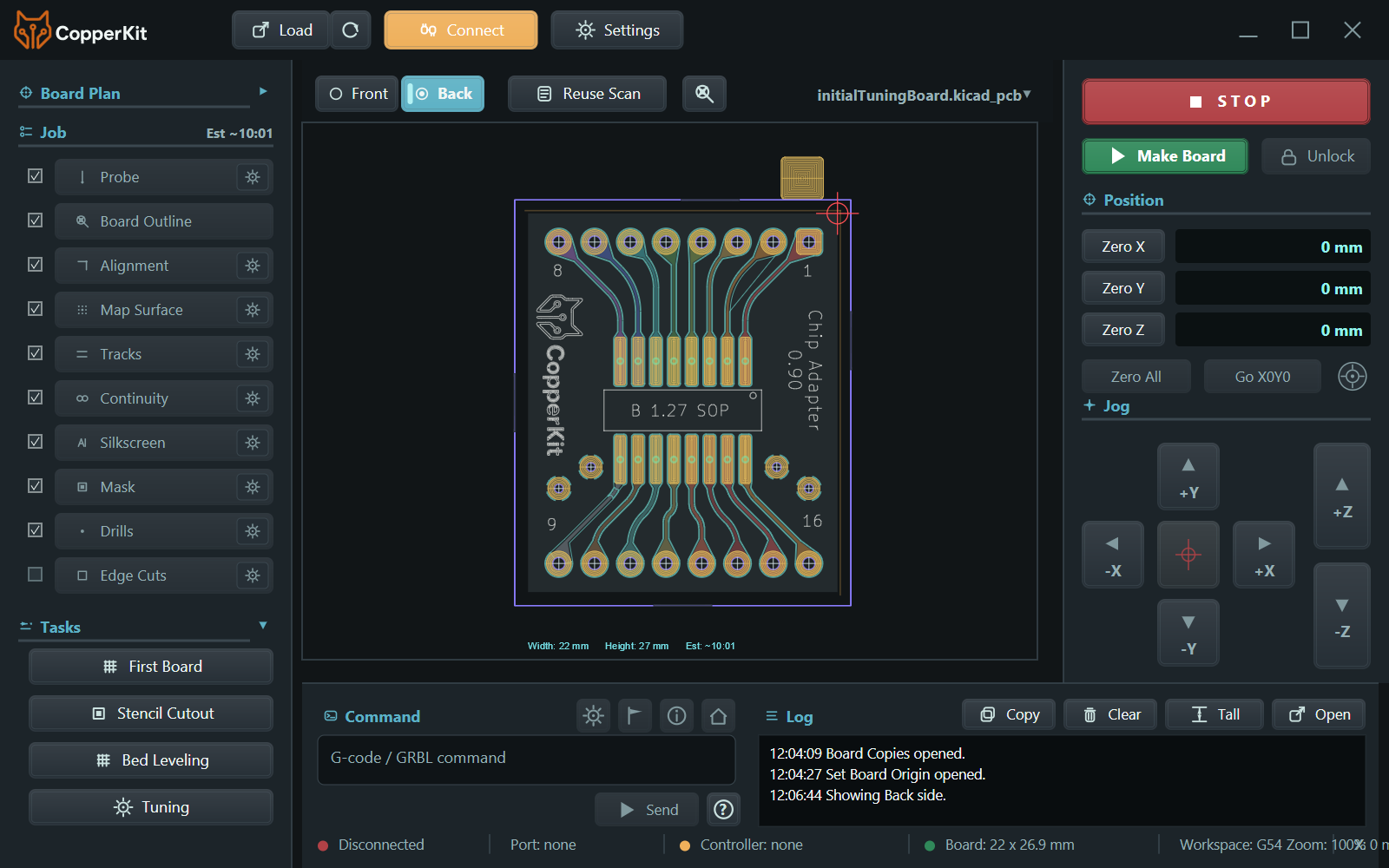
The back-side view mirrors the design, updates the origin, and keeps the same ordered job visible. Alignment and surface mapping follow the physical board instead of depending on a permanent jig.
06 · Intervene
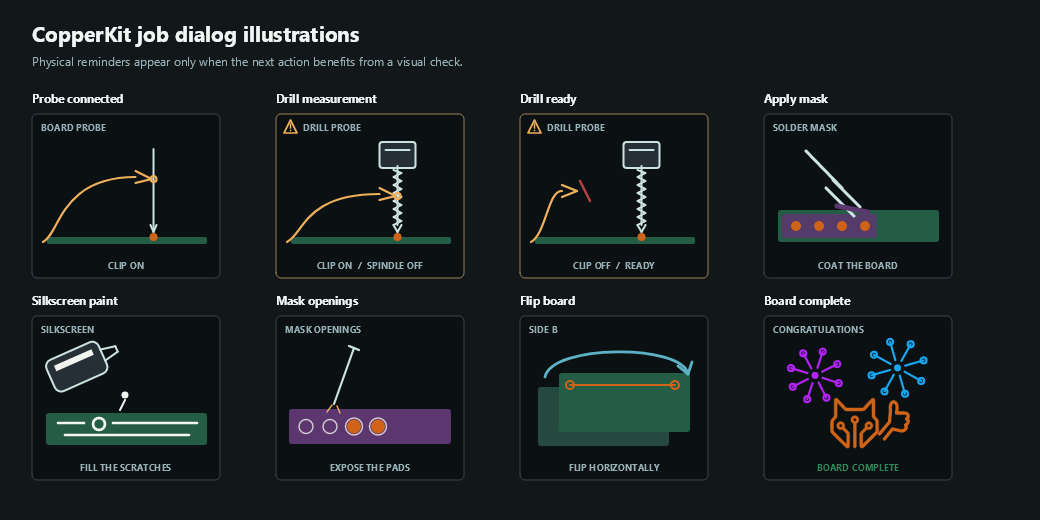
CopperKit handles machine work directly, but pauses when a probe clip, tool change, coating, board flip, or visual inspection needs a person at the bench.